
List Growth
Text-to-subscribe keywords are of the quickest and easiest ways to collect phone numbers and grow your contact list.
No credit card required
When you create an SMS keyword with SimpleTexting, you’ll also get the opportunity to write an autoresponse with it. Here’s a breakdown of both the keyword and the autoresponse:
An SMS keyword is a word or phrase that can text to your number to sign up for future text messages. Because you can create multiple or unlimited keywords in your SimpleTexting account at no additional cost, you can build different contact lists by interests. For example, a pet store could create a text-to-join keyword for their grooming department or for pet types.

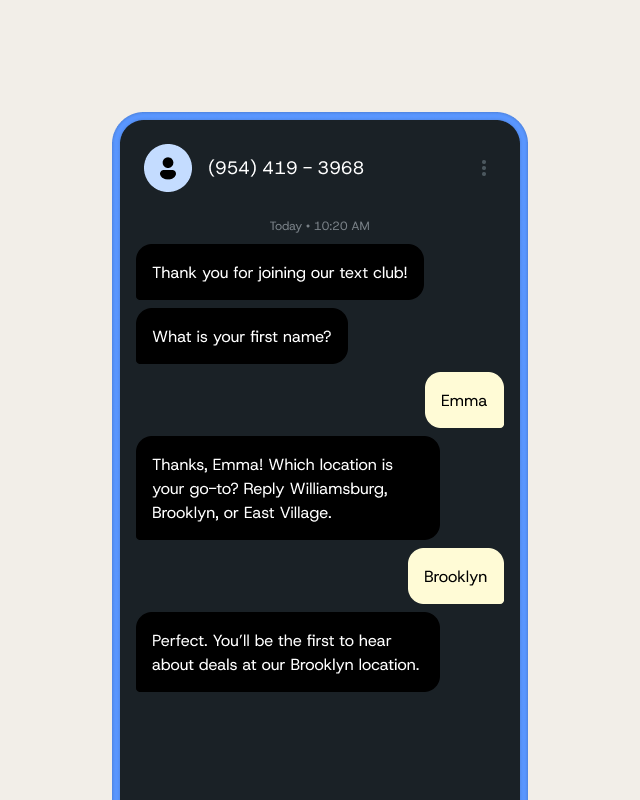
An autoresponse is a followup message that gets sent to a contact after they’ve texted the keyword to your number. This automated text message is typically used to confirm that someone’s subscribed to future text messages and welcome them. Some businesses even offer an incentive for joining. Here’s an example of an autoresponse for a restaurant text marketing program.

Keywords make it easy to engage with our audience while we’re top-of-mind for them, instead of sending them an email later on.
Keywords work well with the following number types:
If you’re not sure what number to choose, here’s a guide to picking the right phone number type for your business.


Organizations use keywords in many different ways. We see businesses:
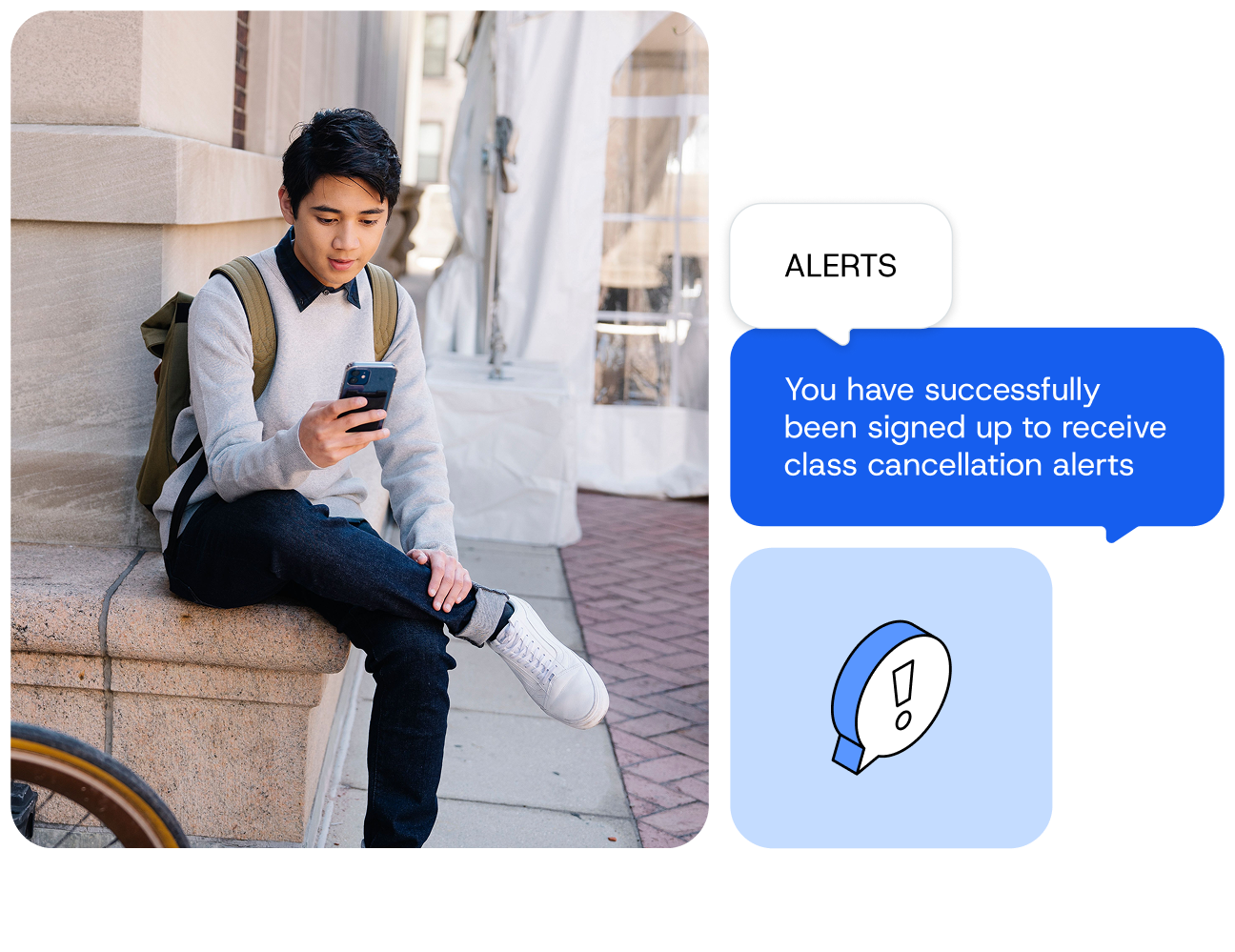
Here are some other ways our customers use keywords:

We’ll walk you through setting up your first keyword campaign step by step. Check out or the video below.

• Go to Keywords on the left hand side of your account and click Create first keyword.
• Assign the keyword to an existing list of contacts, or create a new list just for people who sign up for that specific keyword.
• Type out your auto confirmation message.
• Set your message frequency and any triggers you’d like.
• Adjust your additional parameters.
• Click Save keyword.
Note: if you ever need to edit your keyword, just click the three dots at the end of the row and choose Edit.
You’ve set up your first keyword. Now there are a few next steps to follow for maximum keyword success.