More Blog Posts
How to block a text message on iOS and Android
Tired of spam, scam, or unwanted texts? We'll show you how to block a text message on both iOS and Android, step by step.
Tired of spam, scam, or unwanted texts? We'll show you how to block a text message on both iOS and Android, step by step.
Everyone needs to block a text message from time to time, whether it’s spam or just an annoying message.
After all, Americans received 19.2 billion spam texts in January of 2024 alone.
Thankfully, you can block unwanted texts to make sure the person sending them can’t contact you again.
In this article, we’ll break down the steps you can take to block text messages on iOS and Android. You’ll also learn how to block texts your business is getting and how to make sure your customers never block you.
You can block texts on your phone in its Messages app. Here’s how to keep things like spam and other irritating texts away from your inbox, whether you have an Android or an iPhone.
To block a text on iOS, go to the contact’s information in the Messages app. Here’s the step-by-step:
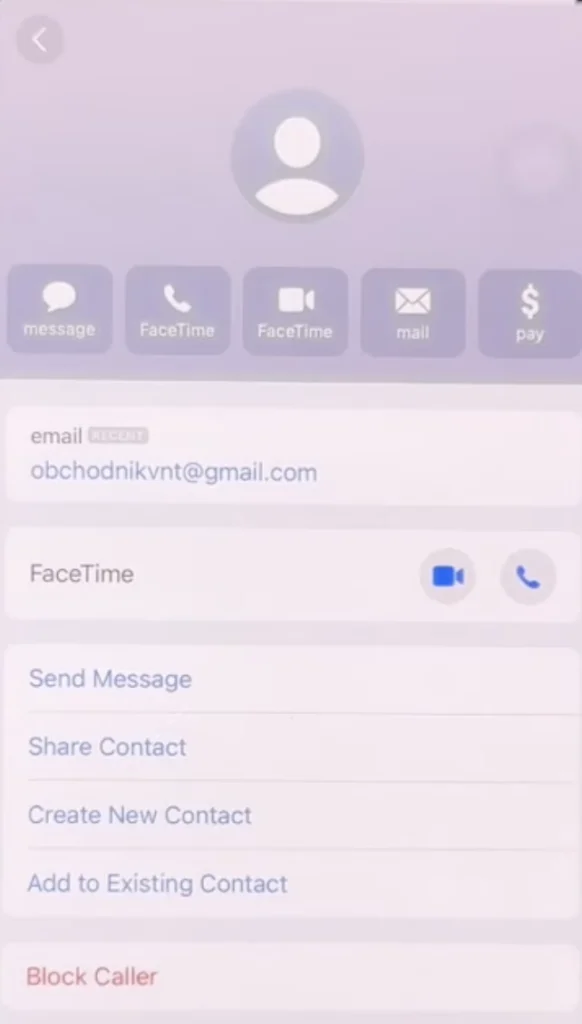
You can see all the numbers you’ve blocked at any time by going to the Settings app on your phone and looking under Privacy & Security, then Blocked Contacts.
The process for blocking messages on Android is (thankfully) very similar. Let’s break down the steps for blocking a text on the Messages app:
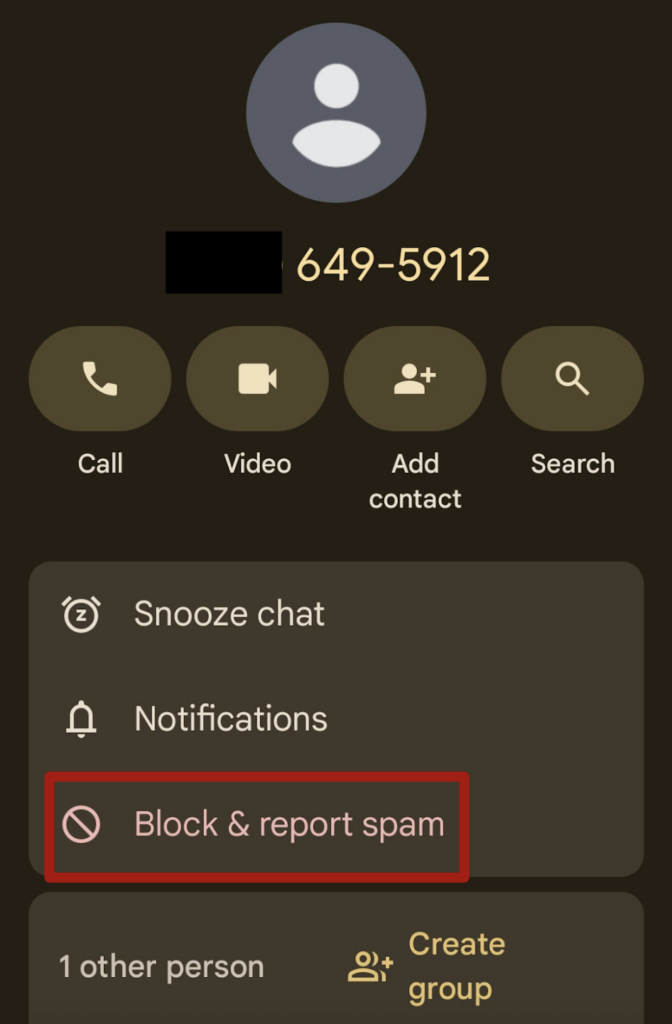
To see lists of your blocked contacts, just head to the Contacts app, click Organize, and select Blocked numbers.
If you have the ability to receive texts as a business, you’re inevitably going to get a few that you don’t want.
You have a few options for blocking unwanted texts:
Obviously, it’s nice to know how to block texts you don’t want to receive, but you don’t want your customers blocking your texts.
So, how do you make sure they don’t? Here are a few best practices.
Here are the answers to some of the questions we get about blocking texts on your Android, iPhone, or business texting app:
You can’t outright block a group text, but you can take measures to leave the conversation. In RCS conversations, you can choose to leave the conversation in the message options. If your group chat is SMS or MMS, you can turn off notifications for the conversation or block all numbers involved.
On iPhone, go to the Messages app. After clicking the menu button at the top right of your conversation list, go to Manage Filtering > Screen Unknown Senders.
On Android, tap on your profile picture in the Messages app, then choose Spam & blocked. Then, select the three dots in the upper-right corner and go to Blocked numbers. Toggle the Unknown switch on to block calls and messages from unknown numbers.
Yes, you can text someone you blocked, unless they also blocked you. Text blocking is one-way.
To unblock text messages, you can follow the same steps as above that you would follow to block someone’s number.
Alternatively, you can visit your list of blocked numbers and unblock them from there. You can find them on iPhone in your Settings by selecting Phone > Blocked Contacts. On Android, tap on your profile picture, go to Spam & blocked, then tap the three dots in the upper-right corner and choose Blocked numbers.
You can’t block texts but not calls – it’s an all-or-nothing situation. But you can mute notifications from a text conversation.
On iPhone, swipe left on a conversation in your Message app’s conversation list and tap the mute icon (which looks like a crossed-out speaker). On Android, press and hold the conversation in your Messages app, then click the snooze icon (which looks like an alarm clock).
On iPhone, you won’t see any blocked text messages. On Android, blocked text messages will appear in your phone’s spam and blocked messages, away from your main inbox.
If you send a blocked text message, you won’t get a notification, but your text may appear as sent, but not delivered.
If you’re still getting texts from a blocked person on Android or iPhone, it could be a malfunction. Restart your phone, and if you’re still getting texts, contact your carrier directly to block the contact on the carrier level.
On iPhone, it’s also possible to send an iMessage from a computer, so make sure you have that person’s secondary contact information, such as emails, blocked as well.
Your text inbox is sacred. You only give out your number to people you trust, so receiving text scams or spammy messages can feel like a serious breach of trust.
Thankfully, you can stop unwanted texts at the source using the tips and tricks we’ve laid out here.
Want a smoother, safer way to run your SMS strategy? Try out SimpleTexting for 14 days, completely free.

Lily is a content marketing specialist at SimpleTexting. She specializes in making helpful, entertaining video content and writing blogs that help businesses take advantage of all that texting has to offer. When she’s not writing or making TikToks, you can find Lily at roller derby practice or in a yoga studio in the Seattle area.
More Posts from Lily NortonMake your email preview text unignorable with these tips and templates.
ReadAs our social lives changed during the pandemic, lots of AI apps were launched to help ease loneliness. Let’s take a look at how AI supports mental health.
Read


Start a text marketing campaign or have a 1-on-1 conversation today. It's risk free. Sign up for a free 14-day trial today to see SimpleTexting in action.
No credit card required